What Is A URL?
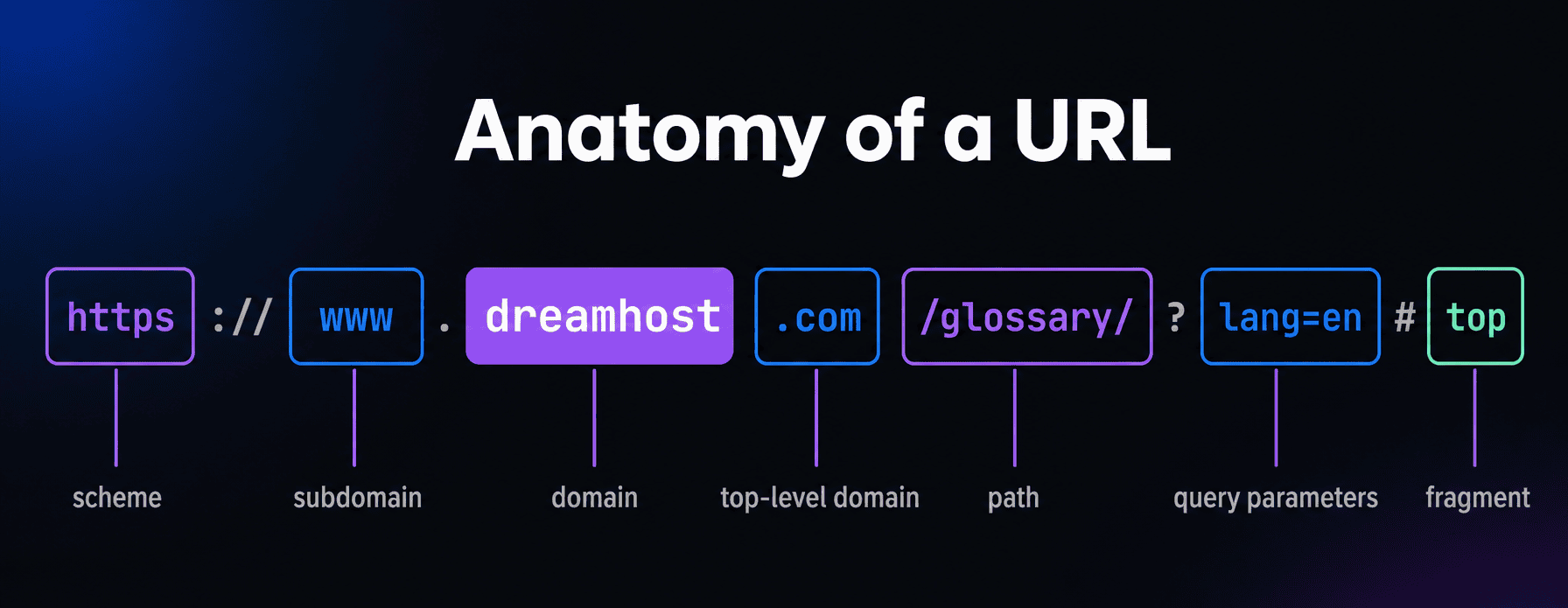
A URL (uniform resource locator) is the address of a resource on the web, such as a page, image, or file. Typing one into a browser fetches that exact resource. A typical URL combines a scheme like https, a domain name, a path, and sometimes parameters or a fragment.
More About URLs
Everything you can reach on the web has its own URL. This article covers what URLs are made of, the different types you’ll meet, and how to write URLs that work well for both people and search engines.
It’s important to know that the “R” in URL — resource — doesn’t always have to be a webpage. It can also be an image, a document, a file, or even a specific section within a webpage. URLs can be used to retrieve most types of resources that are published on the web. They can also be used to fetch resources local to your device, but in today’s article we’ll focus heavily on the online types.
URL Vs. URI Vs. URN
URLs and uniform resource names (URNs) are both types of uniform resource identifiers (URIs).
URI is the overarching system for identifying unique resources. URLs define the locations of these resources and URNs define their names.
Keep in mind that URI and URL are often used interchangeably even though they’re not technically the same. The vast majority of the time when talking about links to resources on the internet, on a device, and within documents most people will simply use the phrase URL — and we’ll follow that same practice here.
Examples Of URLs
URLs are all around us.
For example, the URL for the homepage of Google is https://www.google.com. The URL for the most popular professional social media platform is https://www.linkedin.com/. And the URL for the website you’re on is https://www.dreamhost.com.
Why URLs Are Important
URLs are foundational to the functionality of the world wide web.
First, they’re critical to navigation — acting as the bridge between users and the digital content they seek.
URLs enable everyday people to actually use the web. They allow for direct access to specific content, bypassing the need for deep tech knowledge and complex search queries.
In addition, URLs enable the seamless linking of resources (images, files, etc.) and of course web pages. In this way they’re central to sharing content and supporting the interconnected nature of the internet.
Well-structured URLs that establish a hierarchy and organize content in logical categories are also great for user experience (UX). And, they can even boost a website’s search engine optimization (SEO) efforts and improve their ranking over competitors.
If that intrigues you, be sure to stay tuned ‘til the end of this article for tips on that front.
Where Are URLs Located?
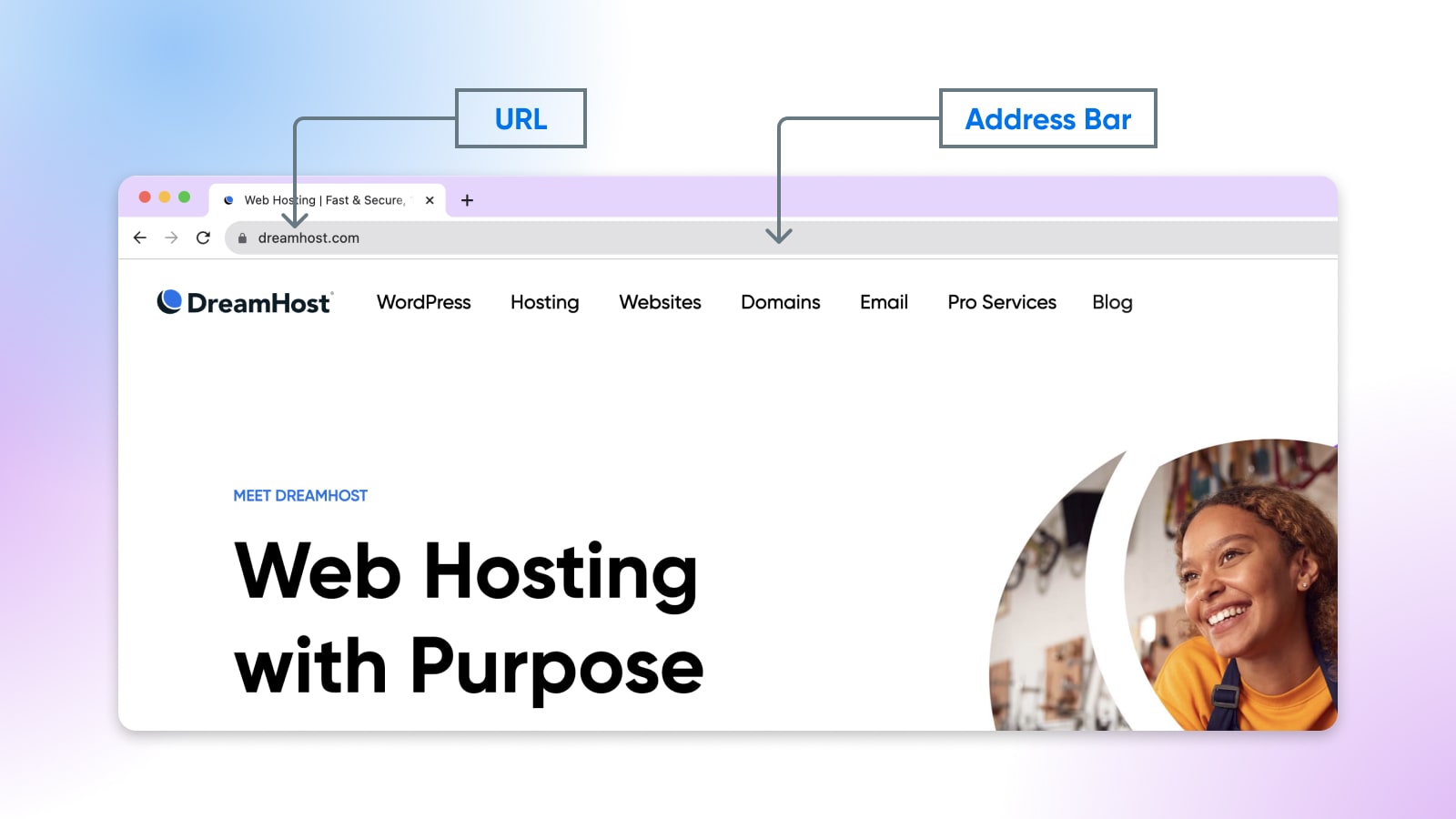
When we’re talking about the URL for a webpage, that lives in your browser address bar.
Whenever you see a phrase hyperlinked on a website or in a document, that’s indicative that a URL has been attached to a phrase — called anchor text. Clicking on the anchor text will bring you to the linked URL.
How Do I Find My URL?
If you’re on your website, look up at the address bar — that’s the URL of your website! Copy it to share it or link it within content.
Keep in mind that, depending on the browser, you might see a truncated version of URLs.
In Chrome for example, when you’re on the homepage of a website you may only see the domain name like in the following graphic.
Is A URL The Same As An Address?
When discussing websites and webpages, you might hear someone refer to the “address” of or “link” to a page. In these cases, yes, people are talking about the URL of a site or page.
A Brief History Of The URL
The concept of a URL was first officially defined in a document called the RFC 1738 in 1994 by the Internet Engineering Task Force (IETF) standards organization and Tim Berners-Lee, who’s often credited with inventing the world wide web.
It brought together the existing domain name format (established around 1985), server name conventions, and new file path syntax (more on that soon) to create a way to point to a specific resource’s location.
Early versions of the name included universal document identifier (UDI), but that was changed as the scope expanded to include various types of resources instead of just web-based documents. The term universal resource locator was also used for a short time before uniform resource locator became the accepted version — though Berners-Lee always expressed a preference for the former.
How URLs Work
To put it in simple terms, when referring to online URLs their job is to help browsers display websites and other online resources.
They function much like home addresses, telling the web browser where to find the desired content.
URLs are made up of several parts, including at the least a scheme, a domain name, and a path. The scheme indicates the protocol the browser should use to connect to the website, the domain name points to which website specifically, and the path tells the browser which page on the website to open.
For example, the URL “https://www.dreamhost.com/blog” tells the browser to use the HTTPS protocol to connect to the “www.dreamhost.com” website and then open the “/blog” page on that site.
If you’d like to dive even deeper into the ins and outs of URLs, that’s up next.
Understanding The Parts Of A URL
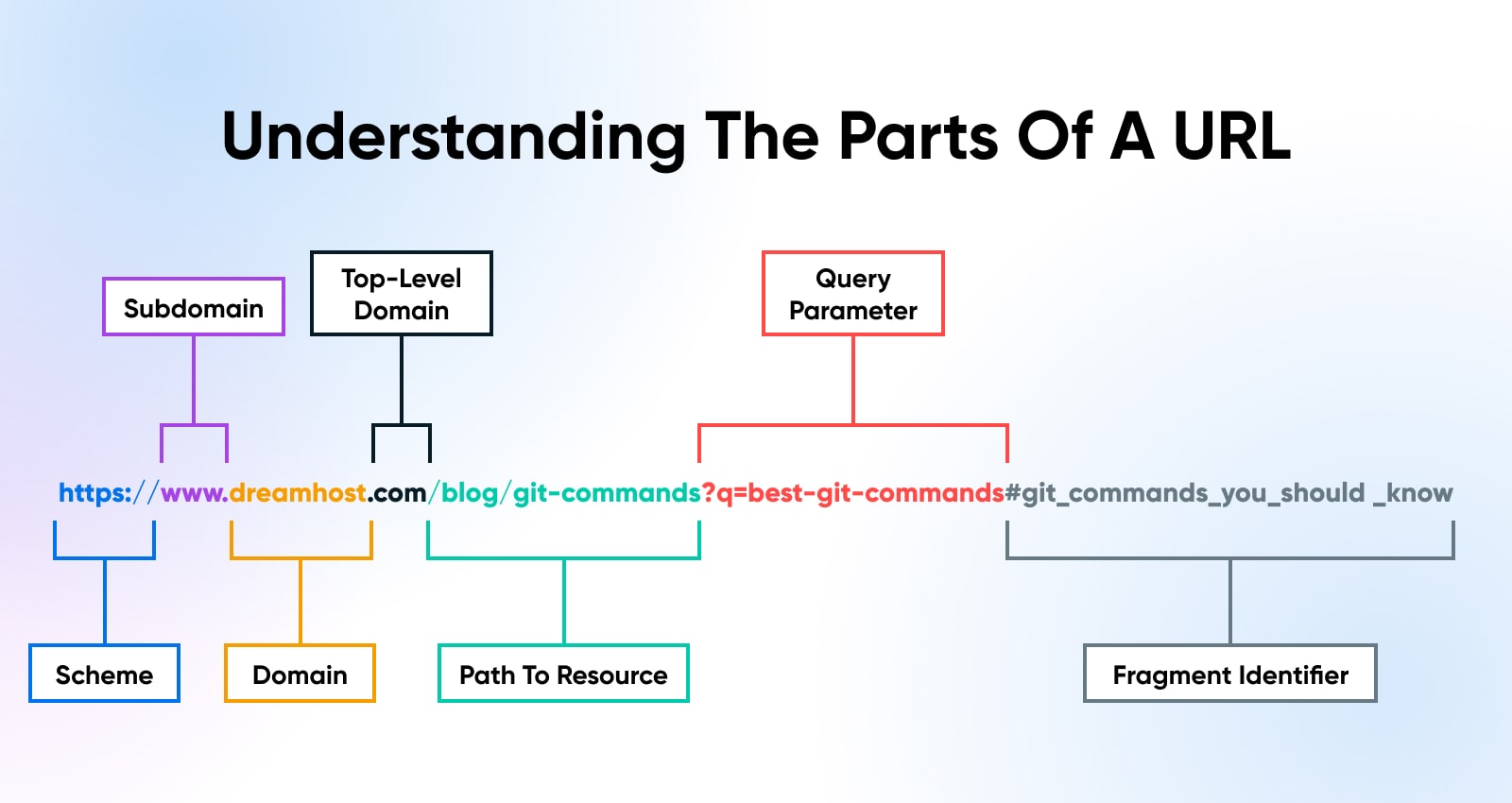
A URL is comprised of several components, each serving a distinct purpose:
Scheme
The scheme is the first part of a URL, and it indicates the protocol to be used to access the resource. Protocols are methods for data transfer and include HTTPS, HTTP, FTP, etc.
For websites today, you’ll most often see the HTTPS protocol.
Related: What is HTTPS?
Subdomain
Subdomains are extensions of primary domains that are used to divide different parts of a website. You may see subdomains like blog., store., etc. The most common subdomain seen in website URLs is “www.” — which stands for “world wide web.”
Domain
Next comes the domain, which is the name associated with a specific IP address on the internet. The DNS protocol is what helps attach IP addresses to domains.
To put it simply, this is the name of the website the resource you’re requesting lives on.
Top-Level Domain
Top-level domains (TLDs) come at the end of the domain name — they’re the .com or .org you’re used to seeing attached to many URLs in the U.S. They’re helpful for categorizing the type, location, and sometimes even age of a domain.
Like area codes do for phone numbers, they expand the number of unique domains that can exist.
Related: What is a gTLD?
Right after the TLD is where the port number lives in some URLs. Port numbers indicate technical gates to web servers. Today the port number is often omitted when the URL is using the standard HTTP or HTTPS protocol. So when you’re visiting most sites on the web, you won’t see the port number in the URL.
Path To Resource
The path in a URL specifies the exact location of a resource.
The path “/blog” indicates the resource is the blog section of a website.
The path “/blog/git-command” indicates the resource is a specific post about git commands within the blog section of a website.
Query Parameters
Query parameters (AKA URL query strings or URL parameters) are tacked onto URLs after the path. They’re usually preceded by a question mark and multiple parameters are separated by an ampersand.
Parameters are attached to URLs for various reasons, including:
- To generate a specific page after filtering content (like a page for red women’s shoes on an ecommerce website)
- To specify a specific version of a page (such as the Spanish version of your homepage)
- To identify the traffic source for advertising purposes (different parameters can indicate a button click, a link click, etc.)
In our example at the top of this section, the parameter “?q=best-git-commands” indicates that the URL on display is the result of a search for a phrase like “best git commands.”
Fragment Identifier
Lastly we have the fragment identifier, which follows a hash mark and names an anchor that lives somewhere in the resource.
In the example above, “#git_commands_you_should_know” is a fragment identifier that refers to a specific section of the webpage titled “git commands you should know.”
One place you’ll see fragment identifiers is on blog posts that have a built-in table of contents. Clicking on an item in the table will quickly scroll you to anchor within the resource that corresponds with the item you selected.
Exploring Types of URLs
As a primary navigation tool on the internet, it’s no surprise there are many different kinds of URLs just like there are many different kinds of maps.
Internationalized Domain Names
Internationalized domain names (IDNs) are domain names that contain non-ASCII characters — Arabic, Chinese, or accented Latin letters like the ü in münchen.de. IDNs are critical to inclusivity and accessibility for internet users worldwide.
Protocol-Relative URLs
Protocol-relative URLs lack the scheme component. They inherit the protocol of the referring page, allowing for seamless transition between secure (HTTPS) and non-secure (HTTP) pages. Now that HTTPS is standard, protocol-relative URLs are discouraged — link straight to https:// versions instead.
Absolute URLs And Relative URLs
Absolute URLs (or absolute URL strings) contain the full URL, including the scheme through the path, to provide a complete address for a resource.
Relative URLs (or relative URL strings) contain just the information after the domain. They build on absolute URLs and tell the browser to stay within the current site and just navigate to a different path.
Canonical URLs
When there are duplicates or near duplicates of a webpage, search engines like Google designate one version as the primary — this is the canonical URL.
A canonical tag (rel=”canonical”) is a snippet of HTML that can be applied to a page to tell search engines this is your chosen canonical URL.
Semantic URLs
Semantic URLs are human-friendly URLs that provide context about the resource.
“https://www.dreamhost.com/blog/what-is-wordpress/” is an example of a semantic URL, while “https://www.dreamhost.com/blog/8472” is not.
Semantic URLs can enhance user experience and, when instilled with target keywords, may positively impact SEO efforts.
Vanity URLs
Vanity URLs are easy-to-share and easy-to-remember custom URLs.
Often, vanity URLs are created to be used in print media, in marketing campaigns, and on social media. Programs like Bitly can be used to quickly shorten and customize URLs.
How To Build Better URLs For People And Search Engines
We’ve mentioned the link (pun intended!) between URLs, UX, and SEO.
There is a wealth of research and advice out there on boosting your search engine ranking via clever URL crafting. In this section, we’ll hit what we think are the most achievable tactics to just get you started down the right path.
Related: What is SEO?
Use Keywords
How can you make your URLs as reader-friendly as well as search-engine friendly as possible? Create a slug — the part of the URL resource path that represents a unique piece of content — that clearly describes the content and integrates target keywords where possible.
Related: How To Do Keyword Research For Your WordPress Blog
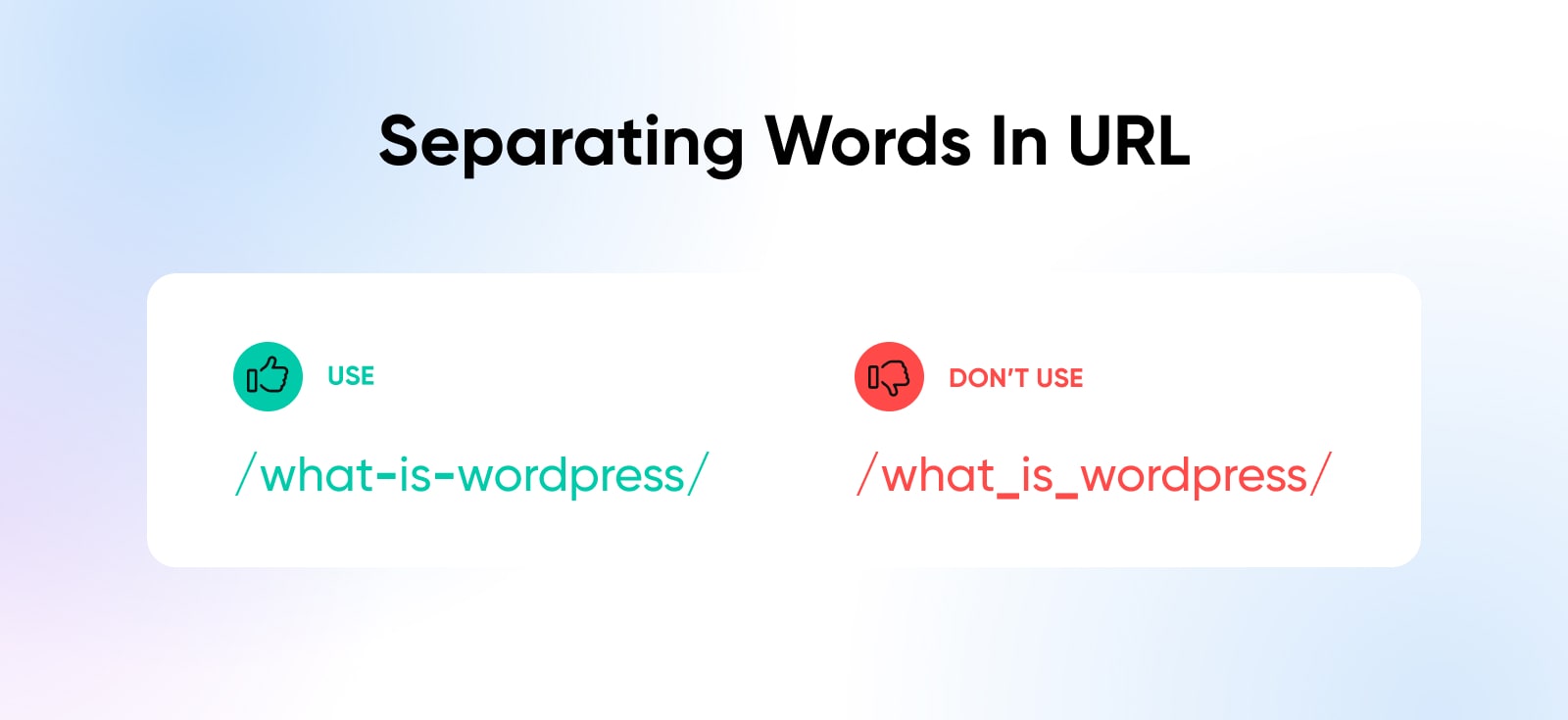
Go With Hyphens Instead Of Underscores
Instead of using underscores to separate words in your URL, Google advises using hyphens when possible to increase readability for both humans and machines.
Use Just One Case
Surprisingly, most of a URL is case sensitive: the domain name isn’t, but the path usually is. It’s easier for users to remember, read, and type in URLs that are all in the same case. Using one case also makes it easier for search engines to understand your URLs.
We recommend sticking with lower case in your URLs since writing in upper case translates to YELLING on the internet (see?!).
Apply Short And Sweet Parameters
You’ve probably witnessed some really long and complex URL parameters. While this is sometimes necessary, it’s best to keep parameters as succinct as possible when you can to increase legibility for both people and search engines.
Avoid Special Characters
Per the RFC 1738 document that originally defined URLs — updated by RFC 3986 — the characters that are always safe to use unencoded in a URL are letters, digits, and these symbols:
- – (hyphen)
- . (period)
- _ (underscore)
- ~ (tilde)
Other characters either have a reserved job (like / ? # & =) or must be percent-encoded. Spaces aren’t allowed at all — they become %20.
What Other URL Topics Can We Help You With?
In many ways, URLs are the backbone of the internet. They’re critical to accessing virtually all types of content online.
If you’re a WordPress website owner or administrator, you may have noticed that URL management is a core part of upkeep and optimization.
Need help changing your WordPress login URL, using URL redirects, or understanding WordPress permalinks?
If you don’t have the time or desire to DIY URL management using our helpful guides, managed hosting or support from our pro services team may be just what you need to get your URLs in order and improve website usability and competitiveness.
Frequently Asked Questions
What’s the difference between a URL and a domain name?
The domain name is one piece of a URL — the site’s name, like dreamhost.com. The URL is the complete address that wraps the domain and points to one specific page or file on that site.
Why do some URLs start with www and others don’t?
The www is a subdomain — a naming habit from the early web, not a requirement. Site owners choose whether to use it, and most sites answer at both versions, with one redirecting to the other so search engines see a single address.
Why does my browser show only part of the URL?
Browsers often hide pieces of the address — Chrome may display only the domain. Click or tap the address bar and the full URL appears, ready to copy. On phones, the share button passes the complete URL to whatever app you pick.
Is a URL the same as a link?
In everyday use, yes — people say “link” and mean the URL. Strictly, the URL is the address itself, and a link is text or an image with a URL attached. Every link contains a URL, but a URL written on paper isn’t a link.